| title | Write content with Pages |
|---|---|
| description | Learn to create documentation, meeting notes, and project requirements using Plane's built-in rich text editor with blocks and formatting options. |
Learn to create and share documentation, meeting notes, and project requirements using Plane's powerful Pages. You'll master the basics of content creation, formatting, and sharing in just a few minutes.
By the end of this tutorial, you'll:
- Create and customize pages in your project
- Use editor blocks to structure content effectively
- Share pages with your team
- Configure page settings for different use cases
Start by creating a new page in your project.
-
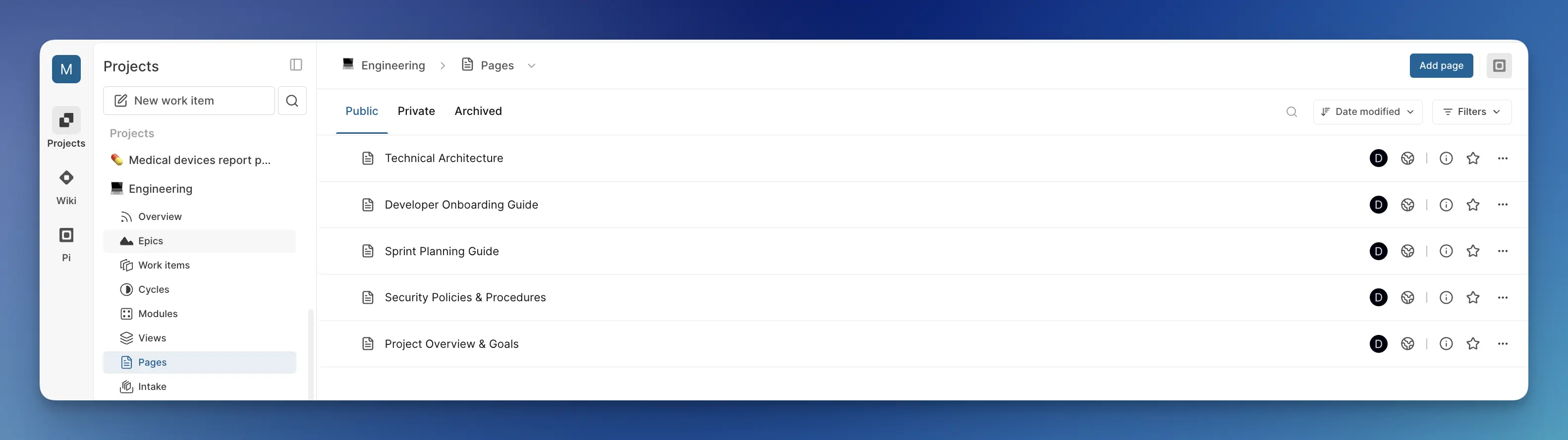
In your sidebar, click Pages under your project name.
-
Notice the three tabs: Public, Private, and Archived. By default, all pages you create are Public - meaning other project members can view and edit them.
-
Click Add page in the top-right corner. A new untitled page opens in the editor
-
Click the icon placeholder next to "Untitled" to choose an icon.
-
Click on "Untitled" and replace with
Project Requirements Document. The page automatically saves your changes.
Learn to structure your content with Plane's powerful block-based editor.
-
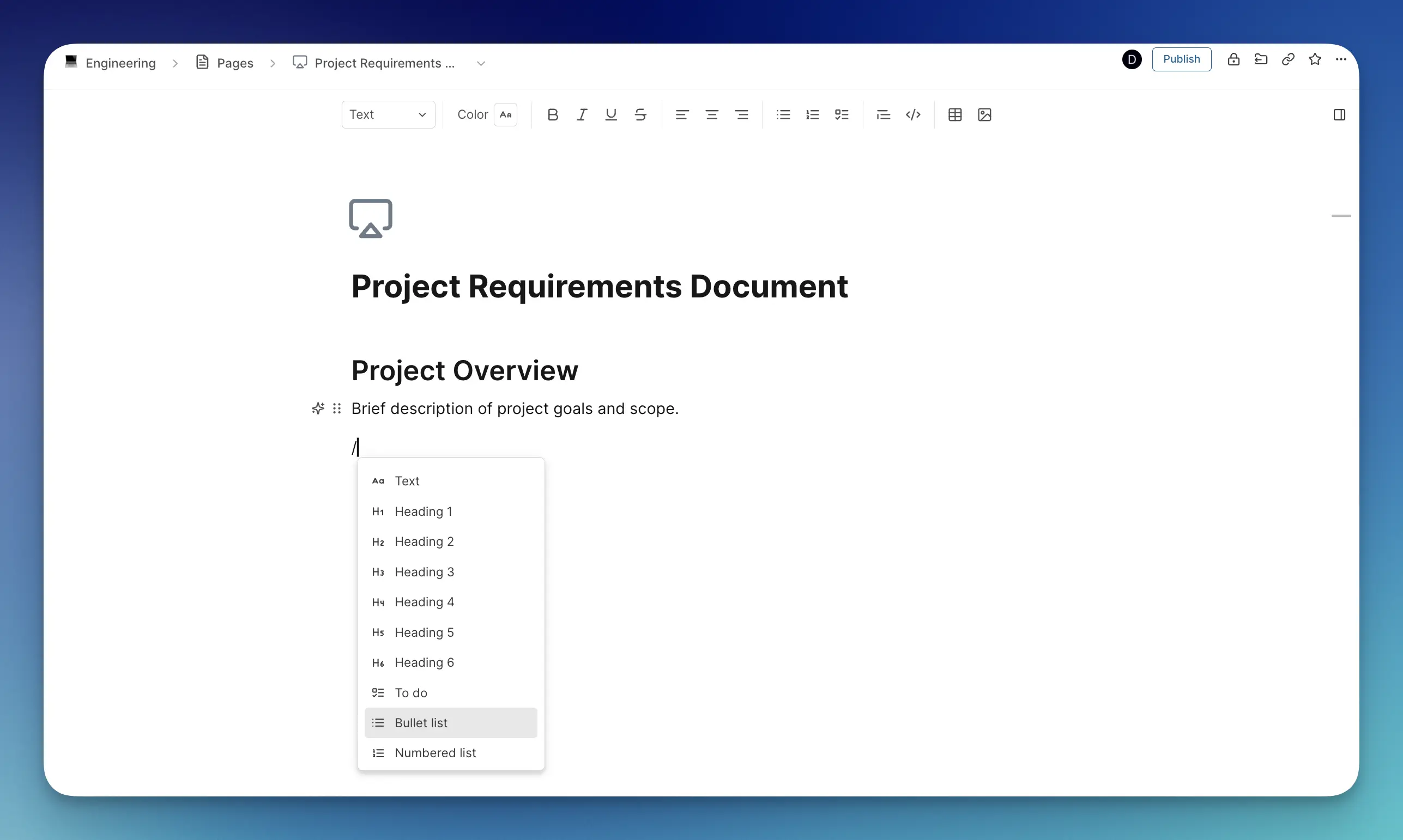
Click in the content area below your title.
-
Type
/to open the blocks menu. Browse available content types. -
Try these essential blocks:
- Type
/h1then "Project Overview" for a main heading. - Type
/bulletto create a bulleted list of requirements. - Type
/todoto add checkable task items. - Type
/h2then "Timeline" for a subheading.
- Type
-
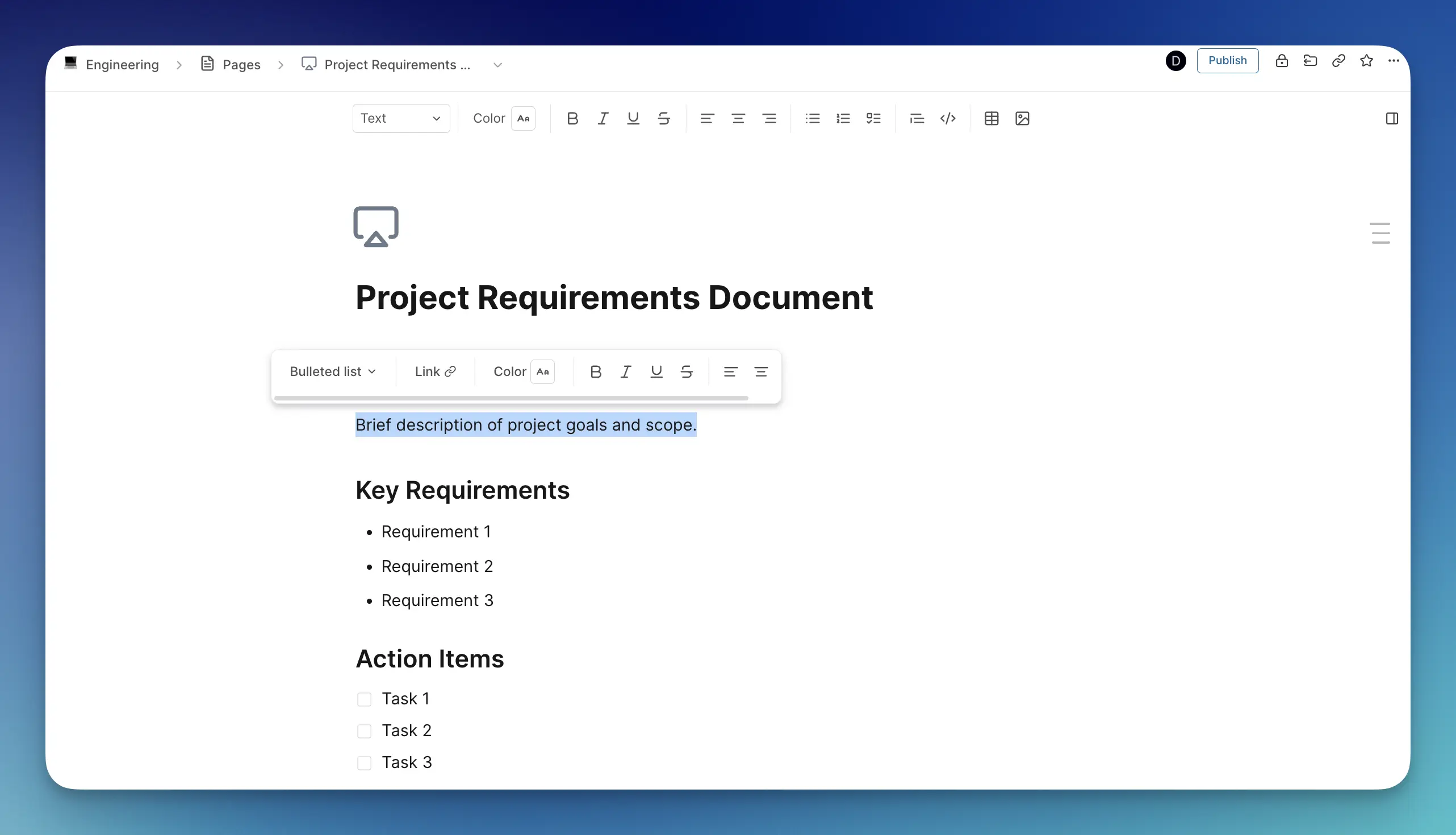
Select text to see formatting options or use the formatting toolbar at the top for all styling options.
-
Add links by selecting text and using the link option.
-
Create a complete document structure:
# Project Requirements Document

## Project Overview
Brief description of project goals and scope.

## Key Requirements
• Requirement 1
• Requirement 2
• Requirement 3

## Action Items
☐ Task 1
☐ Task 2
☐ Task 3
::: tip Explore all available editor blocks in our complete editor blocks reference guide. :::
- Click the link icon in the top toolbar
- The page URL is copied to your clipboard
- Paste this link in Slack, email, or anywhere you want to share the page
- Anyone with project access can view the page using this link
-
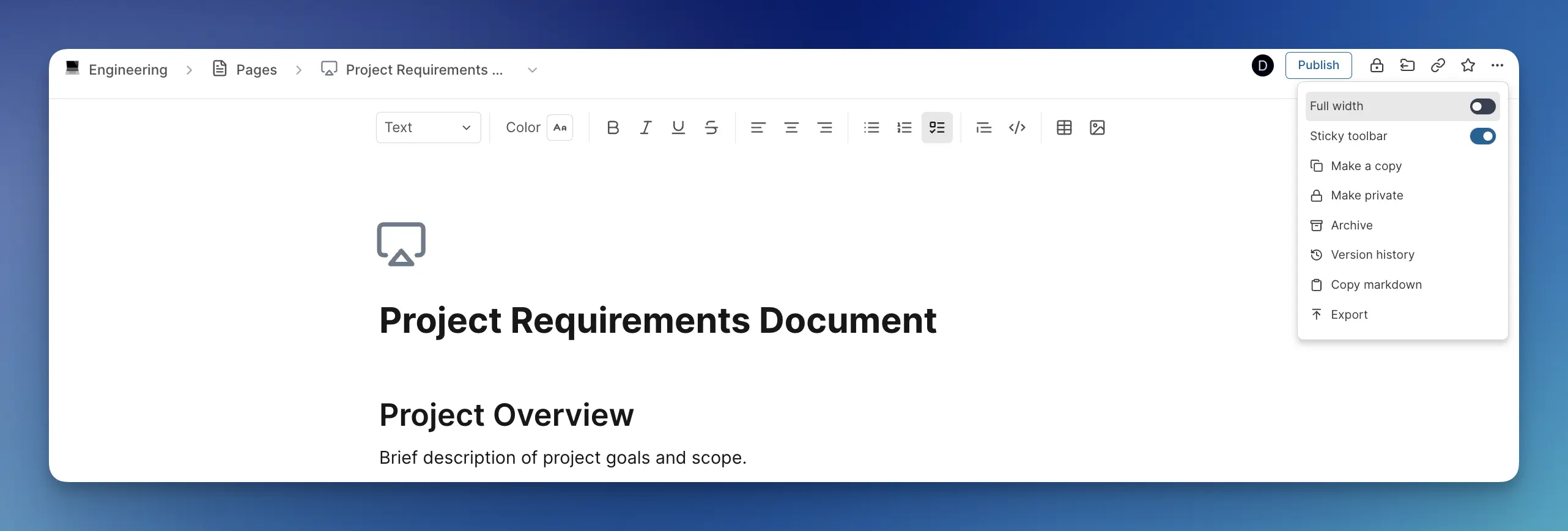
Click the three dots (...) on the top right corner of your page.
-
Review available configuration options. Key settings to know:
- Full width: Toggle on for wider content display (useful for tables and large content)
- Make private: Restrict page access to specific team members (advanced sharing options available)
- Make a copy: Duplicate page for templates or variations