The goal of this tutorial is to pair arbitrary bluetooth speaker with the Home Assistant (HASSO) to be able to hear notifications & Text-To-Speach (TTS)
Proxmox server
- BT dongle (Broadcom - BCM20702A0); A list of supported BT dongles -> https://www.home-assistant.io/integrations/bluetooth#known-working-high-performance-adapters You may also be able to use your integrated Bluetooth module if you are using something like an Intel NUC. The NUC6i5SYK is confirmed to be working.
- Home Assistant (Supervisioned version) (for this tutorial Home Assistant 2023.6.3 -> Supervisor 2023.06.4 -> Operating System 10.3 were used)
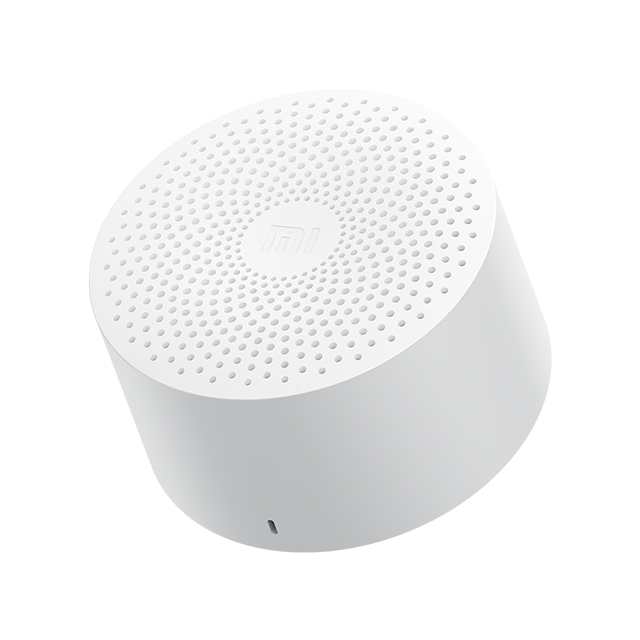
- Any Bluetooth speaker without auto-inactivity or/and auto-shutdown function. I've used Xiaomi Mi Compact Bluetooth Speaker 2 (XMYX02YM)
-
Identify your BT speaker's BT MAC Address & BT Name
-
Make sure that Proxmox’s HomeAssistant VM has an Audio device added (for example:
device=intel-hda, driver=none) -
Pass the USB device to the VM:
- Go to the Home Assistant VM, Hardware, Add USB Device, By Device ID.
- Select the USB-Bluetooth dongle from the list.
-
Install SSH add-on into the HA and configure it
-
Logging into the HA using terminal: login@IP_Address
-
Switch off your BT speaker
-
Type:
bluetoothctl -
Type:
listto list all of your connected BT dongles. You should get the MAC addresses of all your BT dongles -
Type:
select MAC_ADRESS_DONGLEto select your main one dongle (for example: select 55:44:33:22:11:00) -
Type:
default-agentto make selected BT-dongle a default connector with your BT devices -
Let's start connection & paring with your BT-speaker.
-
Type:
scan on -
Turn on your BT speaker & set it to paring mode
-
Check the console to see if your BT speaker has been detected (look for its name or MAC address). NOTE: Be patient during this process. If the speaker does not appear, try putting it back into pairing mode and checking again.
-
Type:
pair MAC_ADRESS(for example: pair 00:11:22:33:44:55) -
Type:
trust MAC_ADRESS(for example: trust 00:11:22:33:44:55) -
Type:
connect MAC_ADRESS(for example: connect 00:11:22:33:44:55) (in the case of any problems typehelpfor more info) -
Be sure to check the confirmations or errors from these commands. Simply repeating these steps if they show an error might help.
-
Optional: Check the configuration of the device in Pulseaudio:
Note that at least with HAOS, this command only works inside the audio container, so you've to run
docker exec -it hassio_audio bashto get a shell in it.- To check the connected devices use:
pactl list | grep ".a2dp_sink". - Look for something similar to Name:
bluez_sink.4C_72_74_XX_XX_XX.a2dp_sink
NOTE: the number represents the MAC address of your BT speaker
- To check the connected devices use:
-

-
Set the newly connected BT device as the default sound output by using following command:
pactl set-default-sink NAME_OF_YOUR_BT_SPEAKER_FIND_IN_THE_PREV_STEPThis is not needed if you only have one audio device in your VM, so you can skip this and the next step, (it should not be muted) -
Check whether the output-audio is not muted, nor volume set to zero, by
Mute:(should beno) andVolume:, should befront-left: 65536 / 100% / 0.00 dB, front-right: 65536 / 100% / 0.00 dBby using following commend:pactl list sinks | grep "Mute:"andpactl list sinks | grep "Volume:" -
Type
ha audio reloadand wait forCommand completed successfullymessage on the terminal -
At this point your BT should be connected to your HA
-
Type:
exit
- Goto HA and install Settings -> Addons -> Install VLC, start it and enable start on boot.
- Goto VLC -> Configuration and select your BT Audio device from the list.
- Goto Settings -> Devices & Services (Integrations) and Add New Integration
- Search for VLC select it and enable Local VLC Media player via Telnet It will add with 1 service called "core-vlc". You can test it by playing some audio from your "My Media" or a TTS.
- Go to the Media dashboard, "My media -> Manage -> Add media" Select an audio file which VLC can play from your Computer to upload it to Media.
- Below the file area, on the bottom of the browser window is a media player bar with a blue selection button that reads "Web browser". Open it and select VLC-TELNET. Click the media file. It should start playing.
-
Go to Developers Tools and Services and enter followings :
-
Service or Actions :
Media player: Play media -
Target: Search for
VLCand select your one -
Content type:
music -
Content ID:
/local/your.mp3(files your.mp3 should be located at the/local/www/folder of your HA installation) Note: With HAOS, you don't have /local. But you can play files in the media library. On the SSH shell, you can also create a.hiddendirectory and move special-purpose sound files that should not show up in the web browser in "My media":cd /mnt/data/supervisor/media mkdir .hidden mv 5-seconds-of-silence.mp3 .hidden/In HAOS, you can play back this example path using this Content ID:
media-source://media_source/local/.hidden/5-seconds-of-silence.mp3 -
Press Call-Service or Perform the action

-
To check the call_service Content-ID of other files, you can use: Developers Tools and Events -> Listen to events In Listening to, enter call_service and click Start listening When you play a not-hidden file from My media, you should see a yaml with this line:
media_content_id: media-source://media_source/local/5-seconds-of-silence.mp3On the SSH shell, run
journalctl -fto get a live log of the HA warnings. In case the file is found, you get no warnings in the journal, but if there was an error, you'll see e.g. the errors opening the file if your Content ID is wrong.
- Go to Developers Tools and go to Actions or Services and enter followings :
- Service or Actions: type
TTSand select one of your favourite (or default) one Text-To-Speach (for the porpouse of this tutoral I used gogole with google translate

- Target or entity_id: Search for
VLCand select your one - Message: type anything you want to be converted to speach
- Press Call-Service or Perform the action

At least with current Home Assistant, it no longer working to play blank-silent "flat-line" audio at an interval to keep a BT speaker awake. The audio file must have some audio signal or else some part of the audio pipeline detects that and the BT speaker still disconnects.
Infrasound is a wavelength that is too low for us to hear, where 20 Hz is said to be the limit, so anything at or below that frequency is sufficient to give the speaker membrane of the BT speaker some signal to move, but it is so slow that our ears (and others things at home) have no chance of picking it up.
In addition, you can set this infrasound a very low level to barely cause any if at all movement of the speaker membrane.
With Audacity, you can generate very precisely what you want: Any infrasound should be fine, but possibly, e.g. a too short signal could possibly cause the BT speaker not register the audio. A very short file that should be very hard to pick up even if you measure your speaker's amplifier would be 500ms# of 2Hz Infrasound with an amplitude of only 0.04. With 2Hz, only a single sine wave fits into the 0.5s time span so you could barely even speak of a frequency, as there is really nothing at all to hear. Combine this with a fade-out to reduce any possible click at the moment the audio stops.
To generate the tone in Audacity, using Generate -> Tone....
- Upload the audio file to Media -> My media library
- Download this file or generate a similar Infrasound audio file using Audacity to your computer.
- On the Home Assistant website, click "Media -> My media -> Manage -> Add media" Select the audio file from your Computer. This uploads it to Media.
- Move the file to a hidden directory. Using an SSH login, run these commands:
cd /mnt/data/supervisor/media mkdir .hidden mv your-nearly-silent-audio.mp3 .hidden/ - Create a new Automation like this:
 For the file uploaded to media/.hidden use this a Content ID like this:
media-source://media_source/local/.hidden/<filename> - Give it a name by selecting top-right corner menu, then select
Rename(for example: "Keep Xiaomi BT Speaker Awake") - Save it and done. Now HA will play every 5 minute a silent sound preventing BT speaker auto-shutdown
III. Appendix 2 - Solution for BT inactivity – auto shutdown (Disable HAOS Bluetooth interactivity drop)
- TODO